Drag a part to move it; clear View and Measure tools
Parts follow the mouse when you drag them, the View tool turns and slides the design, and Measure lands on the part you point at.
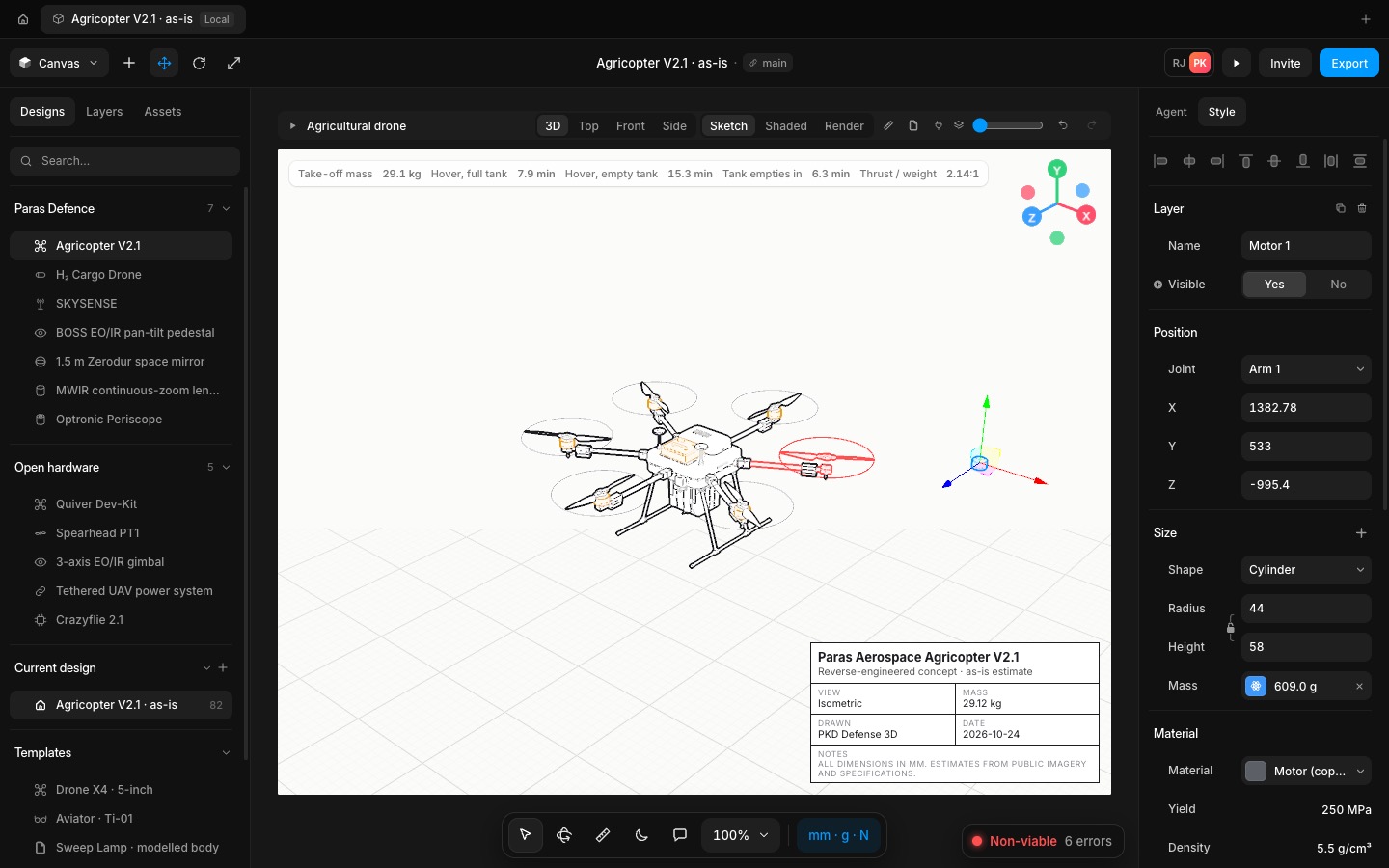
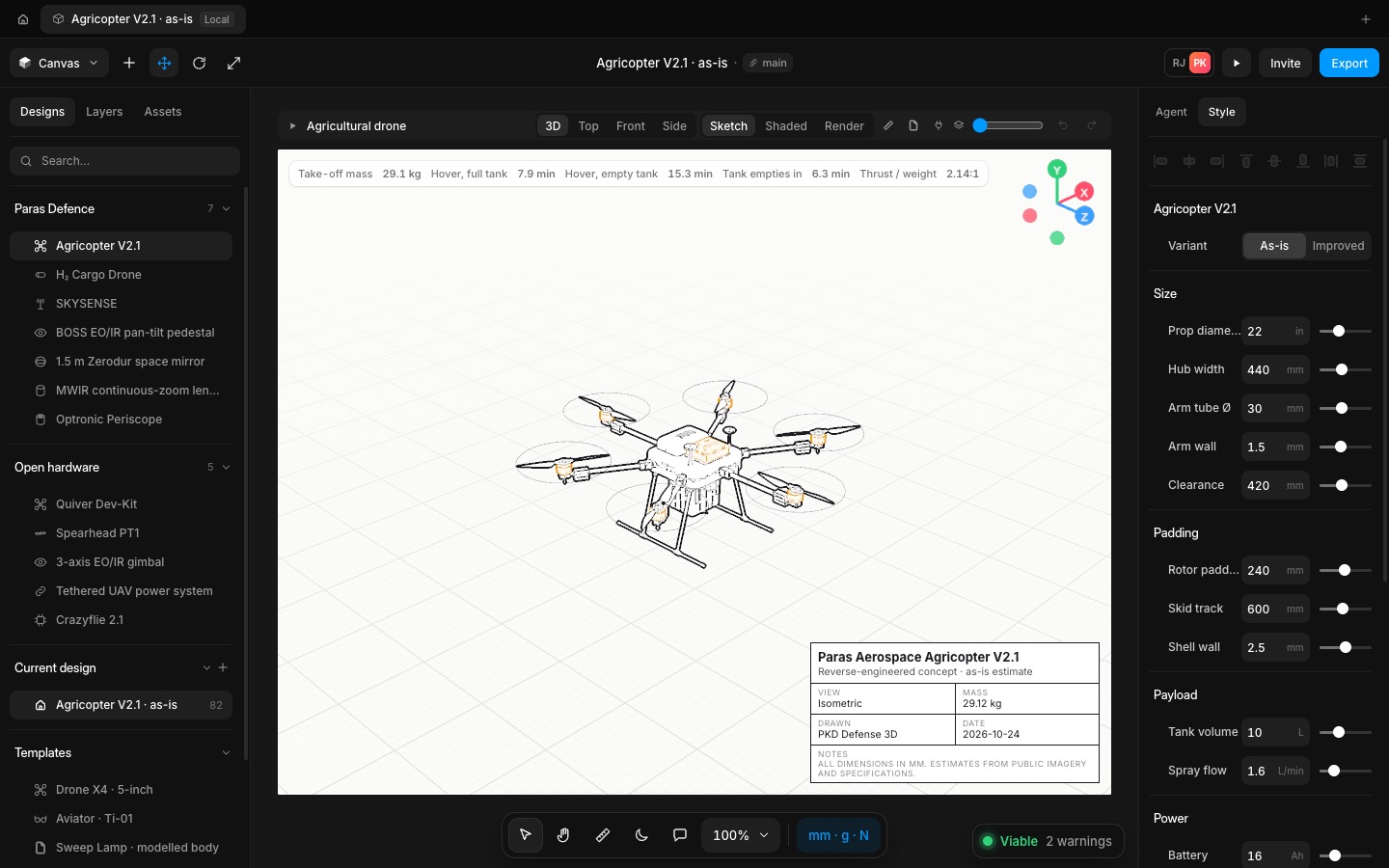
With the Select tool, drag a part and it follows the mouse in the screen plane in 1 mm steps. Shift keeps it on one axis, Alt drops a copy and Esc puts it back. The whole drag is one undo step. Dragging the empty canvas still draws a select box, and a right-drag turns the view.
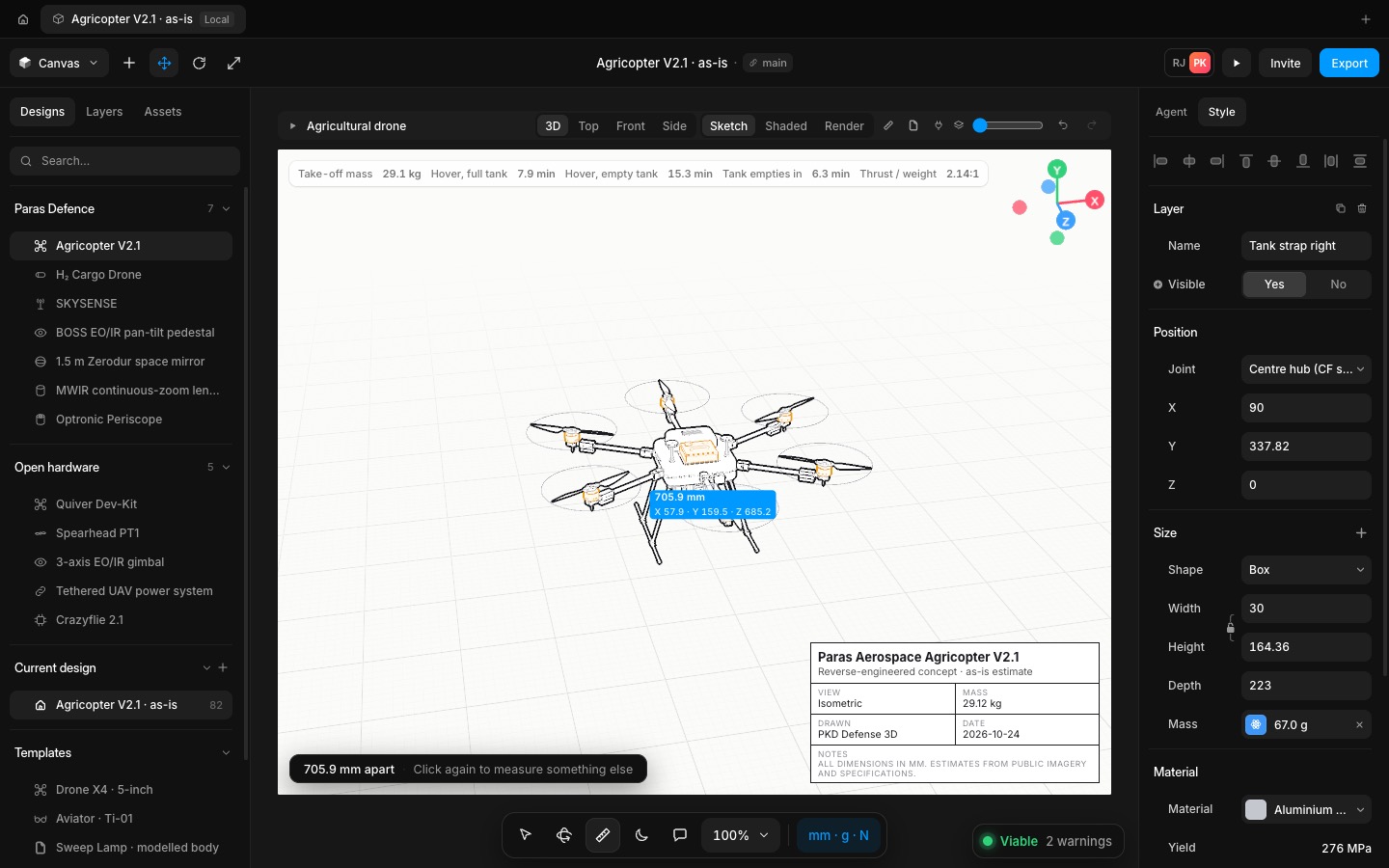
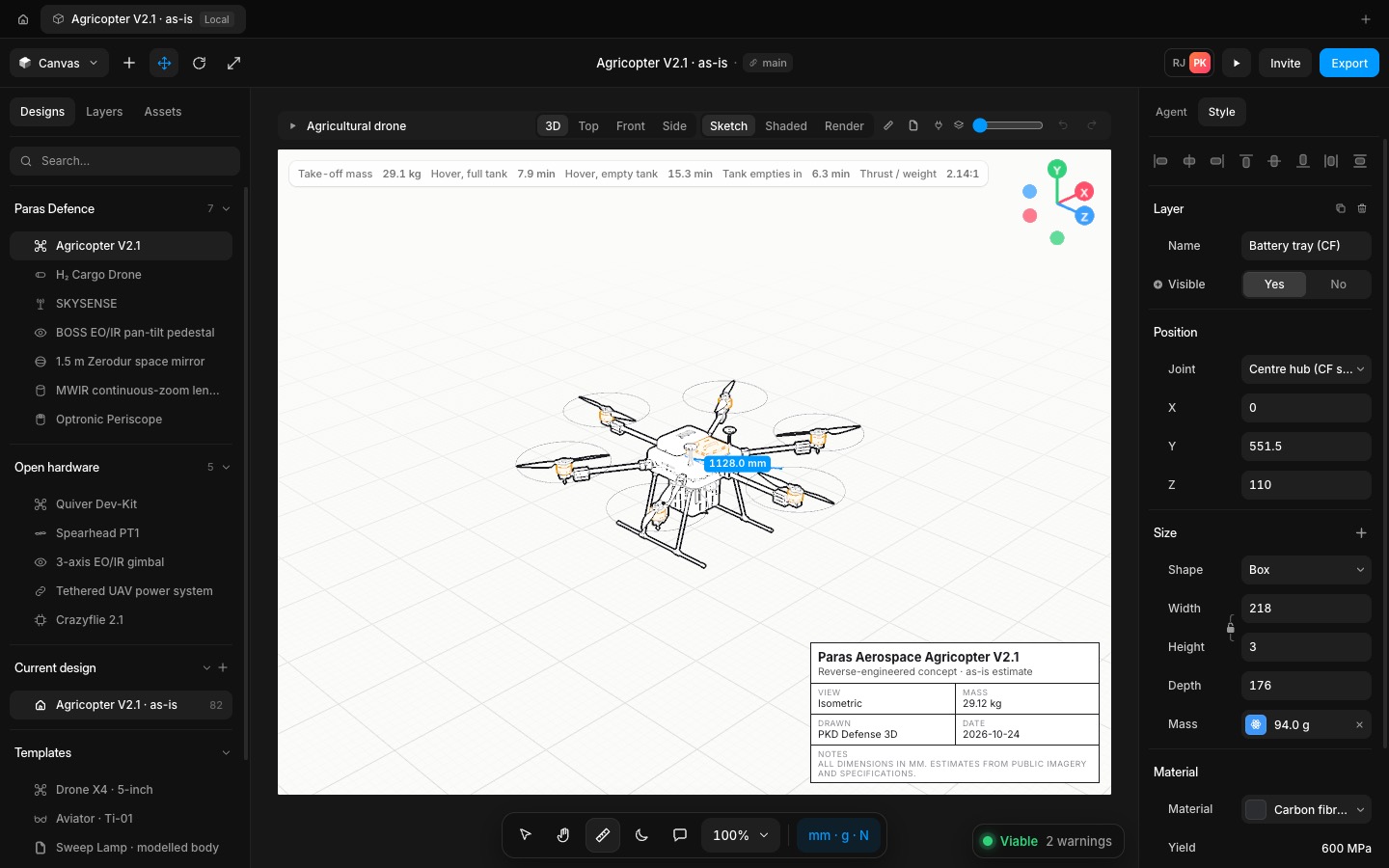
Pan is now the View tool: drag to turn around the design, Shift-drag to slide it, or hold Space from any tool. Measure points land on the part under the pointer instead of the far background, and show the X, Y and Z spans. Propeller discs let clicks and drags through to the solid part behind them.
- Added
- Added drag to move, with Shift for one axis, Alt for a copy and Esc to cancel
- Added a one-line hint for the current tool in the canvas corner
- Improved
- Improved Pan into a View tool: turn, Shift to slide, Space from any tool
- Fixed
- Fixed Measure points landing on the background
- Fixed propeller discs blocking clicks on the parts behind them
- Try it
Open a drone and drag one of its motors.
Open Speed- Shipped in
7a57a16